
Export & handoffs
Video export settings
Understand formats, codecs, resolution, frame rate, bitrate, audio, and ranges.
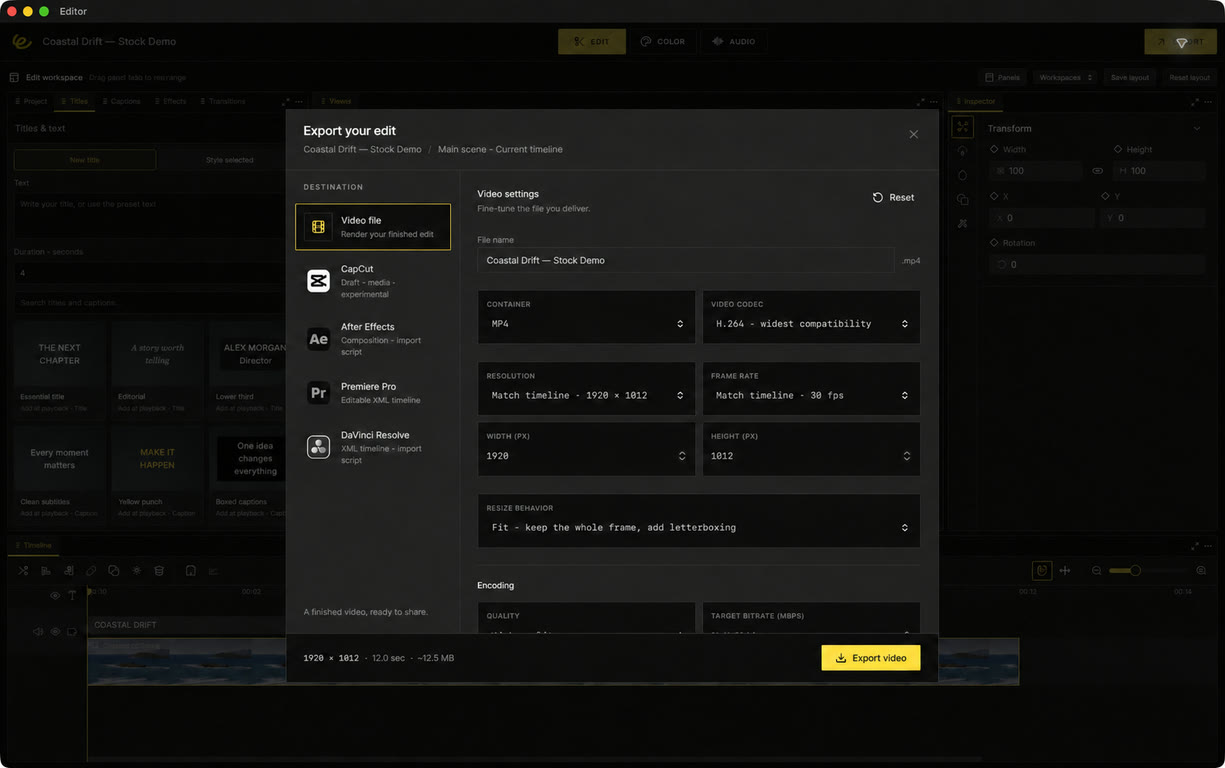
Choose a container and codec#
Export in the header opens the destination workspace for the current scene. MP4 supports H.264, HEVC, and AV1; WebM supports VP9 and AV1, depending on the device's available encoders. Availability is checked before rendering. An unsupported choice returns an error rather than silently switching codecs.
Resolution and frame rate#
Use a preset or custom even dimensions from 16 to 7680 pixels. Choose the project rate or a custom fractional rate. Fit preserves the entire picture with space when aspect ratios differ; Fill crops to cover the output; Stretch changes the proportions.
The scene renders at its original canvas size, then scales for encoding. Text, transforms, and effects retain their geometry when output resolution changes. The final partial frame is retained. Output is opaque SDR, without HDR mastering or transparent-video delivery.
Quality and bitrate#
Choose a quality preset or target bitrate, constant or variable bitrate, keyframe interval, and a hardware preference. The size estimate is based on target rates, so actual file size can differ. More bitrate can preserve detail, but it cannot restore detail absent from the original media.
Audio and custom ranges#
Enable or disable sound and choose AAC/Opus bitrate, 44.1/48 kHz, and mono/stereo where offered. A custom in/out range starts the exported video at zero and trims the mixed audio to the same source interval.
Verify the deliverable#
Editor checks encoded frame counts before reporting success. Encoder operations have a watchdog and cancellation can interrupt pending encoding. Play the result to confirm picture, sound, timing, and dimensions. For an export failure, see Troubleshooting.