
Color grading
Start a color grade
Understand the Color workspace, primaries, log controls, and the SDR pipeline.
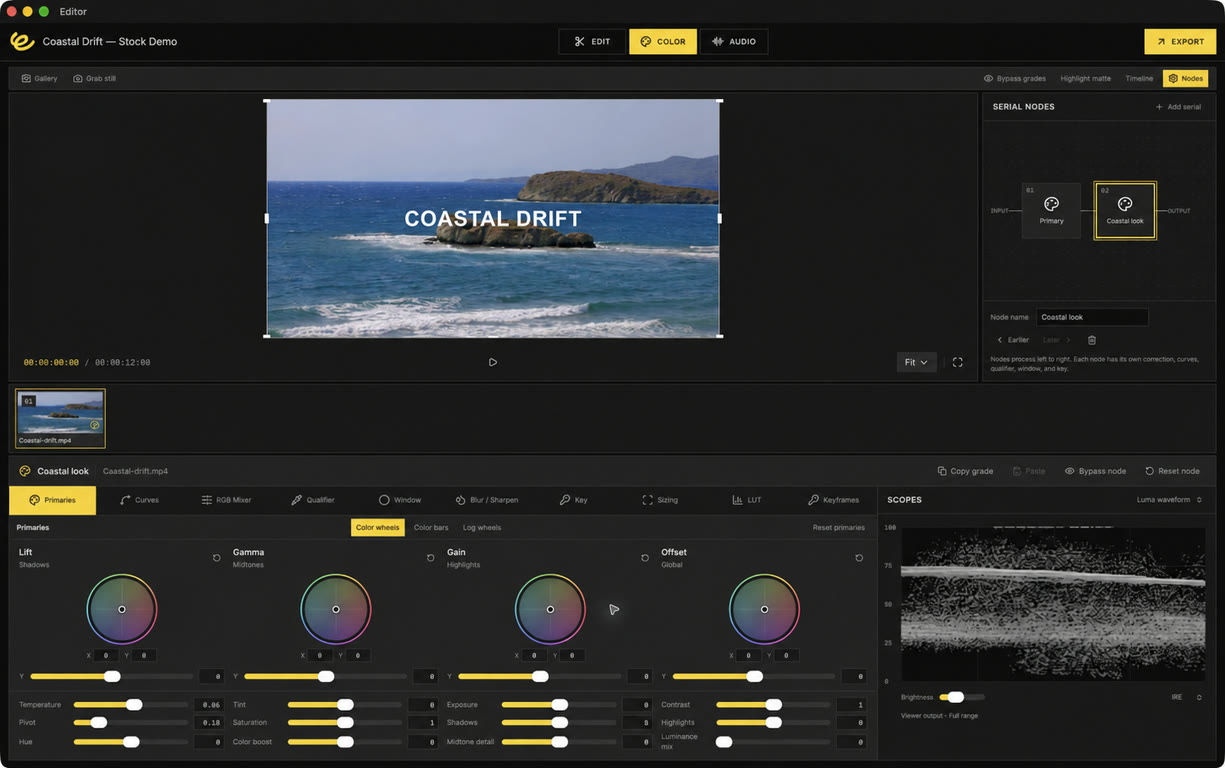
Select a clip and a node#
Open Color beside Edit and choose a video or image from the clip strip. The workspace combines a Viewer, optional Gallery and serial-node panel, clip strip, optional Timeline, palette toolbar, and scopes. Each correction node is attached to the selected clip.
Balance with primaries#
Lift, Gamma, Gain, and Offset wheels adjust different tonal regions or the overall balance. Drag a wheel or use its X/Y fields for keyboard entry. Y sliders and RGB bars offer additional numerical control. Start with exposure, temperature/tint, and contrast before refining saturation or a creative hue shift.
Available controls include contrast/pivot, shadows/highlights, hue, color boost, midtone detail, and luminance mix. Temperature and tint are relative adjustments, not camera Kelvin metadata. The numerical ranges and algorithms are Editor's own and do not match Resolve values one for one.
Log tonal controls#
Log wheels use tonal weighting with adjustable low/high boundaries. They provide a way to target shadow, midtone, and highlight ranges in the current image. They do not switch the project into a scene-linear or log color-management pipeline.
Compare and reset#
Bypass grades temporarily compares the scene without grading in the Viewer. It does not change the saved grade or export. Double-click a slider to reset that control, or use palette/node reset. Resetting a node also removes its numeric keyframes.
Color-management limits#
Version 0.2.0 uses 8-bit display-referred SDR surfaces and clamps between serial nodes. It does not implement project-wide input/working/output color management, ACES, HDR mastering, camera RAW controls, or complete Resolve color-science parity. Camera-log footage needs an appropriate imported normalization LUT; check its input assumptions.